by WebKeyDesign | Jul 19, 2006 | Networking
This week, I planned on putting out another guide. Last time I tackled optimizing WindowsXP, this time around, I looked at how I configure my wireless router. Instead of focusing on speed, I thought it would be a good idea to cover security. This is a topic that most consumers don’t understand and while manufacturers have tried to make networking easier, the truth is that networking is quite complicated. While I’m sure my guide on Securing Wireless Networks is not at all definitive, it does cover the basic measures you need to implement to have a somewhat secure wireless network in your house.
If you do one thing, make sure you enable WPA and use a random generated password. This alone is absolutely essential.
Feel free to add any comments and let me know what you do to secure your wireless network.
by WebKeyDesign | Jul 12, 2006 | In Stock
 My first computer in college was a Macintosh LC III. The hard drive that came with it was 80MB only and I remember having a stack of floppies around for backup. Nowadays I carry most of my essentials on a SanDisk Cruzer Micro; this tiny flash drive is pretty incredible when compared to that 80MB hard drive. It features 1GB of space, which currently leaves me plenty of room for data files and programs. At the same time it is absolutely tiny and easy to carry. Although I have had other USB flash drives, I personally prefer the Sandisk Cruzer Micro for three reasons: the first being it’s physical size, the second has to do with the rubber casing which makes it easy to handle, and the last reason is the U3 software that makes it easier to manage portable applications.
The U3 Drive
U3 is really a platform which some flash drive manufacturers use to make their drives more appealing. These flash drives, usually referred to as smart drives come preformatted in two partitions. One partition automatically loads the U3 Launcher application and the main partition is for your program and document storage. The Launcher sets up a U3 icon on the Task Bar for you to click on. Think of it as a second Start Menu.

Clicking on the U3 icon will bring up the Launchpad as shown above (shown with third party applications already installed). Some smart drives come with third party applications already setup. SanDisk does not come with any third party applications. They include only their CruzerSync software, for which they sell a Pro version upgrade on their website for. Most U3 applications are just repackaged applications that are retrofitted to work on the U3 platform. This also means that most U3 apps are actually commercial applications that you have to purchase from the Software Central site. Although most opensource applications like Firefox are being ported, see Firefox Goes Portable.
The U3 Launchpad
The best features of the Launchpad is that it makes portable software easy to install, launch, and maintain. SanDisk’s implementation of the U3 system is also excellent. Unlike other vendors (like BestBuy’s GeekSquad brand), SanDisk actually updates the U3 software via a software update feature. Their last update, updated the Launchpad’s theme to a brushed metal background similar to Apple’s Safari.

There are however some downsides. The most annoying one is that the Launchpad sometimes refuses to install or interferes with your other mapped drives. So far I have not seen this documented anywhere, but the fix is actually pretty simple. The problem appears to be caused by a conflict between the last mapped drive in Windows, this is sometimes a CDROM drive, or a substituted drive mapping. The solution is to open up Computer Management, which is under the Start Menu – Settings – Control Panel – Administrative Tools. Under the Storage section you will find Disk Management. Right-click the removable disk partition for the flash drive and choose Change Drive Letter and Paths…, and then click on the Change button. Change the drive letter to a higher letter. For example if your CDROM drive is drive D or E, choose F or I for your flash drive partition. Once you make this change, just restart Windows and the Launchpad should install correctly and no longer mess up your CDROM drive mappings.
If you are trying to use the Micro Cruzer or any other U3 smart drive with VirtualPC, it simply won’t work. I think it is because of the USB port that VirtualPC emulates. Then there is the fact that the U3 system only works on Windows, so Linux and Mac OS X users simply will not be able to use the Launchpad at all. I experienced some problems on Windows 2003 Server as well.
Final Thoughts
In all I am quite happy with the SanDisk Cruzer Micro. It is a durable flash drive with some nice features, and even if you don’t use the U3 system, there are plenty of portable versions of Firefox to use with it. My personal favorite is PortableApps Firefox. The only thing I wish SanDisk would do to improve on it would be to include more applications with it.
Other Recommended SanDisk USB Drives


Updated Notes
by WebKeyDesign | Jul 6, 2006 | Software
Now that PC viruses have been with us for 20 years, it only makes sense to remind ourselves to make sure we have some sort of Anti-Virus utility program running on our computers and that its virus definitions are uptodate. Anti-Virus programs are somewhat like insurance, you pay for something just in case something else happens. While insurance is never free in the real world, at least you can still get some free anti-virus programs. Here is a list of some of the more popular programs that are out there for free.
AVG Free Anti-Virus
Grisoft has a long history of making available a free version of their AVG Anti-Virus software and is a very popular choice for many Windows users.
Clam AV
The Clam AV Project is an opensource anti-virus toolkit for UNIX systems. However there are a multiple Clam AV binary packages for almost every operating system you can name, including ClamX AV for Mac OS X. Even if you have another anti-virus program, I recommend installing Clam AV as a backup.
Comodo AntiVirus
From Comodo, the same company that issues SSL certificates for websites, comes Comodo AntiVirus. The company states it is free and will never charge any license fees. Compatible only with WindowsXP (SP2) and Windows2000 (SP4).
Computer Associates ez-AntiVirus
While not exactly free, Computer Associates is offering Vista Beta users a free one year trial of their very affordable ez-AntiVirus. This is personally my favorite anti-virus program. It does not slow down your computer like some other well known anti-virus programs and is very easy to use for novice users and experts. It is also one of the cheapest programs you can purchase.
Spybot – Search & Destory
Anti-virus developers have been reluctant to add on spyware and malware detection to their basic anti-virus programs, so if you need to cleanup spyware and malware, you need to use a separate program like Spybot – S&D. Spybot is my favorite spyware scanner and about its only downside is that you have to download updates manually.
by WebKeyDesign | Jul 5, 2006 | Firefox
It’s still early, but by this fall, Firefox 2.0 should be out. Right now you can download the alpha release, known as Bon Echo. Not to be outdone though, Microsoft has their most anticipated IE 7 beta release available for download. I decided to download and setup both on my WindowsXP laptop which is only an 850MHz machine with 256MB of memory.
Although both IE7 and Bon Echo have new rendering engine changes, primarily the most apparant feature that you will notice is the interface changes. Bon Echo which will become Firefox 2.0, has a much cleaner interface. For example the Tools menu no longer lists Extensions and Themes, but uses the term Add-ons for both. Bringing up the Add-ons option shows a new multi-tab interface for installing and managing Themes and Extensions. IE7 changes are evident right away, in that Microsoft has changed the toolbar and enlarged icons, which is reminiscent of Apple’s iTunes interface.
Although I use Firefox and Safari about 65% of the day, I still use IE6 for at least a third of my daily browsing. Initial impressions were that Bon Echo felt faster and nicer to use than Firefox 1.5. Even if the improvements are not much, the experience was overall better than the current release. For IE7, the results were a bit mixed. I found the interface hard to get use to and initially I kept wanting to re-enable missing icons that I seem to remember using in IE6. After a while, I got used to the IE7 interface and it did not bother me as much. The anti-phishing features of both browsers are a good idea for everyone, so definitely upgrading to these browsers in the future will be a must.
I still think that robust password management should be added to all browsers. Right now Firefox does a good job of storing your information for sites, but what we really need is a universal secure management system. Like most people, I seriously have too many passwords, security phrases, and numbers to remember. Apple’s Keychain is perhaps the best OS level answer to secure password management, but I have to actually open it up and use it for when I want to save something directly. It would be nice if browsers featured a secure information storage system that would allow you to save anything from the browser. Perhaps a popup that would allow you to enter three fields of criteria and let you save to an encrypted database. Lastly it would be great if it was open platform, so any computer could open the file from the browser, as long as you knew the master password. Like I said Keychain, but with a better interface.
by WebKeyDesign | Jun 28, 2006 | Networking
 This week, I set out to improve my wireless reception for my home network. The wireless local area network (WLAN) is powered by a Linksys WRT54GS router. This is a pretty standard wireless G router. The WRT54G router series are pretty affordable and if you have an older version of the WRT54G or WRT54GS model, you can even install a third party firmware to enable more features. If you are thinking of getting a new router, then I suggest you purchase the WRT54GL, since this is the only model that makes it easy to install third party firmware.
As always, installing a third party firmware on your Linksys router does void your warranty and Linksys will not support your router if you are running third party firmware. Do not attempt this if you do not want to void your warranty and support!
HyperWRT
Although there are a variety of different third party firmwares, I chose HyperWRT because it features a powerboosting feature and at the same time strives to stay as close as possible to the original Linksys firmware. Once installed HyperWRT looks almost identical to the Linksys interface. The main difference is the Transmit Power option found under Advanced Wireless Settings:
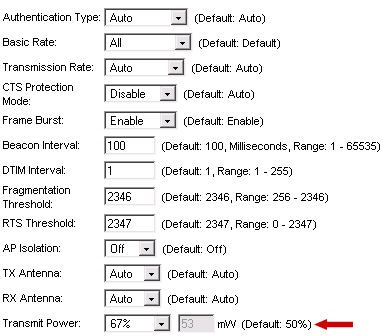
This will effectively boost the range and power of your WLAN. It is best to not boost the signal all the way to 100%, as this will make the router run hotter than normal.
TNC Antennas
Besides firmware changes the other way to boost wireless range is by using a better antenna. The WRT54G routers have TNC connectors to which the antennas connect to. You can purchase a third party antenna from sites like HyperLink Technologies, like this huge Hyper Gain 2.4 GHz 9 dBi Rubber Duck.
 If you prefer to have the antennas match your router, then you want the Linksys HGA7T antennas. These replacement antennas are exactly twice as long as the original antennas on the WRT54G router and are rated at 7dBi.
Replacing the original antennas will increase the wireless range and signal strength, depending on your location from the router. These antennas work best when you are located horizontally to the router. If your main objective is to get better wireless reception on a floor directly above from the router, you are better off installing another access point router. In my experience, the HGA7T antennas improved wireless signal by 12% when I setup my laptop one floor above the router. Overall the improvement was not overwhelmingly better, but was an improvement. Like I said these antennas work best when you and the router are on the same floor. I did experience less signal drops though and was able to use my laptop in my upstairs living room where I had been having problems staying connected before.
As for installing the new TNC antennas, all you have to do is squeeze and turn counterclockwise the antenna to remove it. If you are having trouble getting one off, squeeze tighter and pull the plastic bushing (cover) away from the router to get to the actual antenna TNC connector. Once you remove both, slide the original bushings on to the new antennas and connect them. The router will look a bit stranger with the new larger antennas, but hey looks are not what we are after, it’s a better wireless signal that we want.
Corrections:
The original HyperWRT site may no longer be up. You can still find a copy of HyperWRT Thibor, which is the last version of HyperWRT to be worked on: Thibor’s HyperWRT.
