by WebKeyDesign | Feb 15, 2007 | Internet Explorer
Just when you think that perhaps Microsoft has learned a thing or two about interface design (after all they just released Vista, which is suppose to be their greatest interface achievement of all time), you install Internet Explorer 7 and are greeted with the cruel joke that is the IE7 Toolbars. Why did they put the menu bar in the middle? This is contrary to every other application on Windows. Supposedly it is due to Vista’s interface.

There is a registry key that you can add to force the menu bar to load on top, like it is in IE6. You will need to add the following key:
HKEY_CURRENT_USER\Software\Microsoft\Internet Explorer\Toolbar\WebBrowser\
ITBar7Position
(Data Type: REG_DWORD) Set to 1 to enable.
After you add the key, close IE7 and open it up and it should now look similar to this:
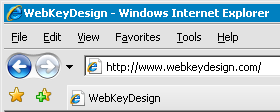
Reference Microsoft Developer Tony Schreiner’s Weblog.
by WebKeyDesign | Feb 14, 2007 | Webmastering
Over the last few weeks I’ve had to work on a Wiki. Overall the experience has been quite challenging, and I have had to adjust somewhat to the limitations of the Wiki script. While I do like the benefit of being able to quickly edit a page or section, I also find myself editing more and more, because I either hate the way my information is presented, or can’t decide on how to organize it. In other words, I find myself being more of an editor than actually authoring content, which over time frustrates me, because the whole reason I am using a wiki in the first place is to create content. The more I use wiki, the more I am beginning to think that I really don’t like wiki as a creative tool. Perhaps it is because I am now too comfortable with regular HTML, or because I use WordPress so much, or maybe because in the end, wiki tools are boring.
I have started to insert more HTML and CSS within the wiki entries to make them look nicer and I am somewhat satisfied with the results now. However I still can’t escape the notion that wiki is as limiting as using Microsoft PowerPoint, which I consider to be one of the worst pieces of software to ever be invented. I hate when people reduce complicated ideas into bullet points. Real life can’t be reduced to just an unordered list of points, it has to have meaning and sadly I think the wiki tool is just one step better than PowerPoint, which is to say it is mediocre. Not bad, but not great.
by WebKeyDesign | Feb 8, 2007 | Web Site Basics
Occasionally I am asked by potential customers how they can transfer their website to our web hosting. There seems to be a lot of confusion as to how to go about doing this, so I figure this would make a good how to article. The first thing you need to do is decide what web hosting package you will need. Once you decided on a package you can begin to do the following steps:
Domain Registrar
In order to move your site you will need to change DNS Servers. It is not necessary to transfer your domain to your web host, but if your previous host is also your registrar, you might want to move your domain registration to a third party registrar to avoid conflicts with your previous host. It is never a good idea to move a domain that expires in less than a month, so always renew your domain at your current registrar and then move it. This way you do not risk losing your domain due to expiration.
Purchase Hosting Package
Your next step is to purchase the hosting package you want. This way you can have access to your new account via the IP address, right away. You want to get the new hosting account ahead of time. Most hosts expect you to renew before your account expires, so if you know you are moving your hosting, it is best to get the new account three to two weeks ahead of time, so you have plenty of time.
Transferring Your Files
There are multiple ways to move your files over to the new account. If your current host is a standard cPanel web host, cPanel’s Backup Panel offers the best possible way of moving your site. In the Backup Panel you can do two types of backups: Full backups and Home Directory backups. A full backup file can only be restored on your new host by your web host. For most small sites, a Home Directory backup is good enough. You can download the Home Directory backup to your own home computer. You will want to make sure that the backup file is less than 50 megabytes. It is best to have a 15 megabyte backup file, because large backup files will timeout when you try to restore them. If you have a large gallery or directory with image files, it is best to FTP these down to your home computer and remove them before creating a backup. This way your backup file is smaller. Once you have your backup file, you will need to connect to the new cPanel account by IP address and in the Backup panel, restore your backup file. It is important to note, that it is best to use the same username on your new account, this way setting files will not need to be changed. If your username is different you will run into some unexpected problems. If you are using any databases, these databases must be backed up individually and restored individually on the new account as well. Lastly if you have any subdomains these cannot be added in your new account until your old account is deleted, so you must wait to set these up.
If you are not transferring between cPanel host accounts, then the default way to transfer files is via FTP. Download all your files down from your current host and then transfer them via the IP address of your new account through FTP. Databases will still have to be backed up and restored individually.
You should add database usernames, so that your web site scripts can access their respective databases.
Changing DNS Servers
Now that you have moved your site files over, you need to change DNS Servers. This is done at your Domain Registrar. Each registrar uses their own custom site panel, so all I can say, is you need to find out how to do this exactly. It is best to change the DNS Servers overnight, so initiate the change in the evening hours and let the changes propagate around the Internet overnight.
Delete Your Old Account
At this point all that is left is to delete your data from the old account and notify the host that you are canceling the account. Once your account is removed from your old host the new account will show up immediately since DNS was already changed.
Final Changes
Once your new site is up, you just need to verify that all your website scripts work, that all pages are accessible, and that there are no errors. You can now also setup your subdomains and any email accounts you had. Once you are satisfied that everything is working, it is a good idea to make a backup.
