
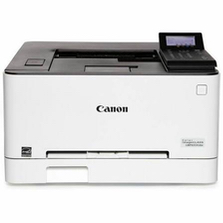
 There is nothing more frustrating about the tech world than having to support printing. Unlike computers, tablets, and mobile phones, the printer seems to be the last reminder that the world is not entirely digital. The printer is in fact a mechanical device that requires attention to detail. It is the one device that I can think of that I use the least but which breaks down just when I need to use it. It will break because I use it too much or not enough! The printer has spinning rollers and ink cartridges and it moves paper, but if the paper is too moist or not enough, or wrinkled, or folded, or too thick then you have a paper jam. What I am trying to say is that your printer is needy, it wants your attention or else.
I decided to replace my Lexmark printer, because all it really did at this point is swallow paper and refuse to print. The replacement ended up being a Canon color laser printer that I found on sale on Amazon. This time, I went with a color laser and decided to give Canon a shot at being the home office printer. First you should know that all printer software is terrible. I install printer drivers for Lexmark, HP, Epson, and Brother and it is all equally confusing on Windows and MacOS. The main difference between the Canon and the Lexmark printers is the noise. The Lexmark is rather quiet when it spins up every now and then. The Canon sounds rather loud and you can hear it from another room when it wakes up and prints. I did run into two issues with the Canon. The first issue was that I was unable to update the firmware on the printer, the other was my fault. I forgot what code I setup for the security of the printer and needed to reset it back to factory settings.
Factory Reset
For the reset, you must be at the printer and use a special sequence to put the printer into Service Mode. This is not at all in the manual. For Service Mode:
- Press Home
- Press 2
- Press 8
- Press Home
Now you can do a Factory Reset from the menu options.
Firmware Update
For the Firmware Update, you will need to download it from the Canon Support site or you can update the firmware from one of the options on the printer itself, by going through the menu options. I preferred to download the update from the site, connected a laptop to the printer via USB, and then ran the firmware update tool as administrator in Windows.
The problem you run into is that the utility never sees your printer. It is not explained in the manual that you must go to the printer and first setup the printer to be in firmware update mode. Once it is in this mode, then the utility will see the printer and update it. Again, this is not explained in the manual from what I can tell.
Firewall Recommendation
This is more a tip for anyone who has a network printer like this. You should block the printer from the internet using firewall rules on your router. Block the printer’s network IP completely or block these specific ports for your printer’s IP address:
- Port 631 UDP and TCP
- Port 443 TCP
This will prevent hackers from communicating with your printer and printing all sorts of stupid stuff.