by WebKeyDesign | Jul 6, 2006 | Software
Now that PC viruses have been with us for 20 years, it only makes sense to remind ourselves to make sure we have some sort of Anti-Virus utility program running on our computers and that its virus definitions are uptodate. Anti-Virus programs are somewhat like insurance, you pay for something just in case something else happens. While insurance is never free in the real world, at least you can still get some free anti-virus programs. Here is a list of some of the more popular programs that are out there for free.
AVG Free Anti-Virus
Grisoft has a long history of making available a free version of their AVG Anti-Virus software and is a very popular choice for many Windows users.
Clam AV
The Clam AV Project is an opensource anti-virus toolkit for UNIX systems. However there are a multiple Clam AV binary packages for almost every operating system you can name, including ClamX AV for Mac OS X. Even if you have another anti-virus program, I recommend installing Clam AV as a backup.
Comodo AntiVirus
From Comodo, the same company that issues SSL certificates for websites, comes Comodo AntiVirus. The company states it is free and will never charge any license fees. Compatible only with WindowsXP (SP2) and Windows2000 (SP4).
Computer Associates ez-AntiVirus
While not exactly free, Computer Associates is offering Vista Beta users a free one year trial of their very affordable ez-AntiVirus. This is personally my favorite anti-virus program. It does not slow down your computer like some other well known anti-virus programs and is very easy to use for novice users and experts. It is also one of the cheapest programs you can purchase.
Spybot – Search & Destory
Anti-virus developers have been reluctant to add on spyware and malware detection to their basic anti-virus programs, so if you need to cleanup spyware and malware, you need to use a separate program like Spybot – S&D. Spybot is my favorite spyware scanner and about its only downside is that you have to download updates manually.
by WebKeyDesign | Jul 5, 2006 | Firefox
It’s still early, but by this fall, Firefox 2.0 should be out. Right now you can download the alpha release, known as Bon Echo. Not to be outdone though, Microsoft has their most anticipated IE 7 beta release available for download. I decided to download and setup both on my WindowsXP laptop which is only an 850MHz machine with 256MB of memory.
Although both IE7 and Bon Echo have new rendering engine changes, primarily the most apparant feature that you will notice is the interface changes. Bon Echo which will become Firefox 2.0, has a much cleaner interface. For example the Tools menu no longer lists Extensions and Themes, but uses the term Add-ons for both. Bringing up the Add-ons option shows a new multi-tab interface for installing and managing Themes and Extensions. IE7 changes are evident right away, in that Microsoft has changed the toolbar and enlarged icons, which is reminiscent of Apple’s iTunes interface.
Although I use Firefox and Safari about 65% of the day, I still use IE6 for at least a third of my daily browsing. Initial impressions were that Bon Echo felt faster and nicer to use than Firefox 1.5. Even if the improvements are not much, the experience was overall better than the current release. For IE7, the results were a bit mixed. I found the interface hard to get use to and initially I kept wanting to re-enable missing icons that I seem to remember using in IE6. After a while, I got used to the IE7 interface and it did not bother me as much. The anti-phishing features of both browsers are a good idea for everyone, so definitely upgrading to these browsers in the future will be a must.
I still think that robust password management should be added to all browsers. Right now Firefox does a good job of storing your information for sites, but what we really need is a universal secure management system. Like most people, I seriously have too many passwords, security phrases, and numbers to remember. Apple’s Keychain is perhaps the best OS level answer to secure password management, but I have to actually open it up and use it for when I want to save something directly. It would be nice if browsers featured a secure information storage system that would allow you to save anything from the browser. Perhaps a popup that would allow you to enter three fields of criteria and let you save to an encrypted database. Lastly it would be great if it was open platform, so any computer could open the file from the browser, as long as you knew the master password. Like I said Keychain, but with a better interface.
by WebKeyDesign | Jun 28, 2006 | Networking
 This week, I set out to improve my wireless reception for my home network. The wireless local area network (WLAN) is powered by a Linksys WRT54GS router. This is a pretty standard wireless G router. The WRT54G router series are pretty affordable and if you have an older version of the WRT54G or WRT54GS model, you can even install a third party firmware to enable more features. If you are thinking of getting a new router, then I suggest you purchase the WRT54GL, since this is the only model that makes it easy to install third party firmware.
As always, installing a third party firmware on your Linksys router does void your warranty and Linksys will not support your router if you are running third party firmware. Do not attempt this if you do not want to void your warranty and support!
HyperWRT
Although there are a variety of different third party firmwares, I chose HyperWRT because it features a powerboosting feature and at the same time strives to stay as close as possible to the original Linksys firmware. Once installed HyperWRT looks almost identical to the Linksys interface. The main difference is the Transmit Power option found under Advanced Wireless Settings:
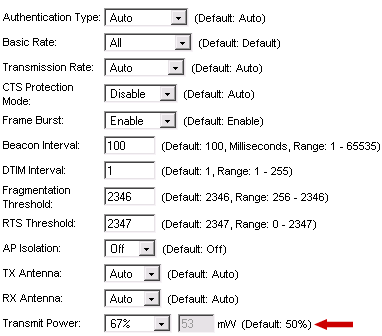
This will effectively boost the range and power of your WLAN. It is best to not boost the signal all the way to 100%, as this will make the router run hotter than normal.
TNC Antennas
Besides firmware changes the other way to boost wireless range is by using a better antenna. The WRT54G routers have TNC connectors to which the antennas connect to. You can purchase a third party antenna from sites like HyperLink Technologies, like this huge Hyper Gain 2.4 GHz 9 dBi Rubber Duck.
 If you prefer to have the antennas match your router, then you want the Linksys HGA7T antennas. These replacement antennas are exactly twice as long as the original antennas on the WRT54G router and are rated at 7dBi.
Replacing the original antennas will increase the wireless range and signal strength, depending on your location from the router. These antennas work best when you are located horizontally to the router. If your main objective is to get better wireless reception on a floor directly above from the router, you are better off installing another access point router. In my experience, the HGA7T antennas improved wireless signal by 12% when I setup my laptop one floor above the router. Overall the improvement was not overwhelmingly better, but was an improvement. Like I said these antennas work best when you and the router are on the same floor. I did experience less signal drops though and was able to use my laptop in my upstairs living room where I had been having problems staying connected before.
As for installing the new TNC antennas, all you have to do is squeeze and turn counterclockwise the antenna to remove it. If you are having trouble getting one off, squeeze tighter and pull the plastic bushing (cover) away from the router to get to the actual antenna TNC connector. Once you remove both, slide the original bushings on to the new antennas and connect them. The router will look a bit stranger with the new larger antennas, but hey looks are not what we are after, it’s a better wireless signal that we want.
Corrections:
The original HyperWRT site may no longer be up. You can still find a copy of HyperWRT Thibor, which is the last version of HyperWRT to be worked on: Thibor’s HyperWRT.
